Troubleshooting
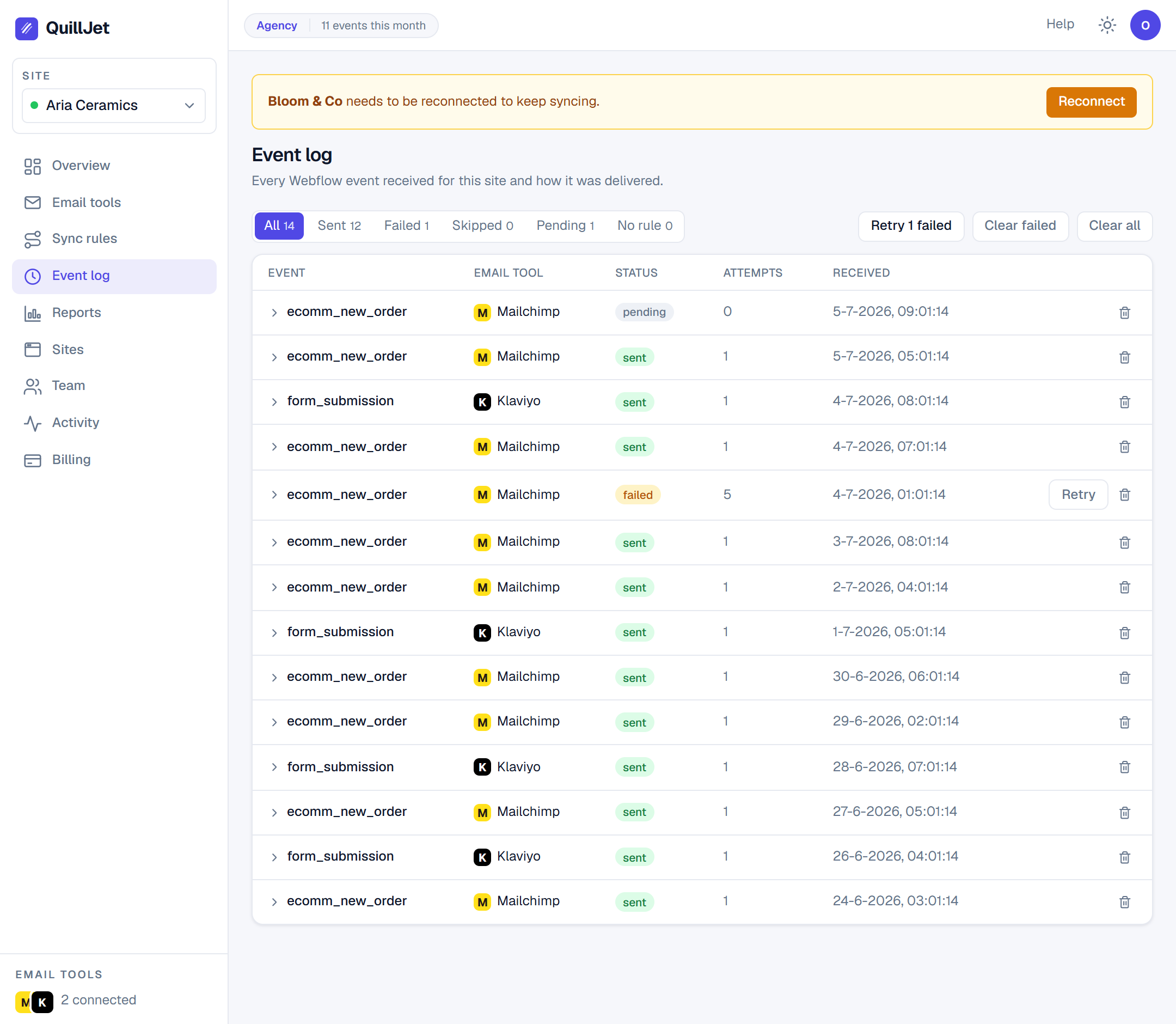
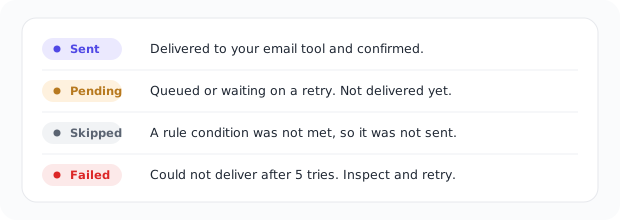
Almost every question ("did it sync?", "why did nothing happen?") is answered in one place: the event log. Open it first. It lists your recent events, and each one shows a delivery status per sync rule: pending, sent, failed, or skipped. Expand an event to see the exact contact QuillJet built and the exact error, if any.
Tip:
skippedis not a failure andfailedis not permanent. Read the status first, then the sections below match each status and error string to a cause and a fix.
A contact was skipped (conditions not met)
Status: skipped. The rule ran, but a condition was not met, so QuillJet deliberately did not sync the contact. This is working as designed, not an error.
Conditions are an AND of every rule you set: all must pass, and an empty condition set always passes. If a delivery is skipped when you expected a sync, open the event, check the payload values against your conditions, and adjust the operator or value. Common cause: comparing a number with gt or lt against a field that arrived as text, or an equals that does not match the exact value Webflow sent.
"no_email_in_payload" (no email found)
Status: skipped, reason no_email_in_payload. QuillJet could not find an email address in the event, and a contact with no email cannot be upserted. This is normal for events that are not about a person, such as a product edit (Webflow reports it as a CMS item change) or an inventory change.
QuillJet looks for the email in the known order path (customerInfo.email), in form data.* and CMS fieldData.* fields, and finally scans for any email-shaped value. If none is present, the delivery is skipped.
Fix: make sure the event actually carries an email. For a form, the form needs an email field. For a CMS item, the collection needs an email field in the data. If the email lives under an unusual label, add a field mapping that points at it. Once corrected, use Retry on that delivery in the event log. To keep product edits out of a CMS rule entirely, add a condition on the collection.
"no_marketing_consent" (not sent without consent)
Status: skipped, reason no_marketing_consent. The rule's New contacts setting did not subscribe this contact (Add without subscribing, or the consent box was not ticked), and the tool is Brevo, MailerLite or GetResponse, where being on a list is the subscription. QuillJet does not send such a contact to those tools. If the person did agree to marketing email, check which field the rule reads as consent; see subscribers and contacts.
"contact_unsubscribed" (the tool kept an opt-out)
Status: skipped, reason contact_unsubscribed. The person unsubscribed in your email tool, and the tool refused the update to keep them unsubscribed. MailerLite does this (it answers "This subscriber is unsubscribed and cannot be imported"). Nothing is wrong and nothing is retried; if the person wants to receive email again, they resubscribe through your tool.
"over_quota", "over_plan_site", "over_plan_tool" (plan limits)
Status: skipped. over_quota means your account passed its monthly event limit; over_plan_site and over_plan_tool mean this site or email tool is beyond what your plan includes, usually after a downgrade. The event is stored but not delivered, and it is not delivered later, even after an upgrade. For over_plan_site only the event type and time are kept, not the form or order content. New events deliver again once you upgrade or, for over_quota, when the next calendar month (UTC) starts. See billing and plans.
"no_target_list" (pick a list/audience)
Status: failed, error no_target_list. The rule points at an email tool that requires a target list or audience, but none was selected.
This applies to Mailchimp and GetResponse, which must have a list or audience to deliver into. Open the rule, choose the target list or audience, and retry. See connecting your email tool for where lists are picked.
A provider error like "mailchimp_401" or "brevo_400"
Status: failed, error <provider>_<status>. The email tool accepted the request but returned an HTTP error, so the error is the provider name plus the HTTP status code, along with a human-readable detail. Examples: mailchimp_401, brevo_400, klaviyo_401, getresponse_403.
Read the status code to find the cause:
_401/_403(auth): the API key or connection is invalid, expired, or lacks permission. Reconnect the tool in connecting your email tool with a fresh key, or re-run the Mailchimp OAuth connect._400(bad request): the tool rejected something about the contact, often a required field the tool expects or a value it will not accept. Check the detail shown on the delivery and your field mapping._404: the target list, audience, or resource no longer exists in the tool. Re-select a valid list on the rule._429: you are being rate limited. Seerate_limitedbelow.
Fix the underlying cause, then use one-click retry.
There is also <provider>_unreachable (for example mailchimp_unreachable, brevo_unreachable). This means QuillJet could not reach the tool at all, usually a temporary network issue on the provider side. These are retried automatically; if they persist, check the provider's status page and retry.
"activecampaign_needs_account_url"
Status: failed, error activecampaign_needs_account_url. ActiveCampaign is unique among the tools: besides an API key it needs your account API URL (your personal ActiveCampaign API endpoint). Without it, QuillJet has nowhere to send the contact.
Fix: open the ActiveCampaign connection and add your account API URL, then retry. See connecting your email tool for exactly where to find and enter it.
"rate_limited" (auto-retried)
Status usually returns to pending while retrying, error rate_limited. The email tool returned a rate-limit response (HTTP 429). QuillJet retries automatically and honors the tool's retry-after timing, so in most cases you do not need to do anything: the delivery lands on a later attempt.
QuillJet retries failed deliveries with exponential backoff (about 30s, 60s, 120s, then 240s) for up to 5 attempts. If a delivery still cannot succeed after that, it is marked failed and the account owner is emailed, at most once per email tool per day. For a persistent rate_limited, spread out large imports or check whether another tool is hammering the same account.
New events stopped appearing (paused / needs reconnect / trigger not enabled)
If no new events show up in the log, the cause is almost always the site, not a delivery:
- The site is paused or needs reconnecting. QuillJet only captures new events while a site's status is connected. If a site is paused or its authorization lapsed (needs reconnect), incoming events are ignored and nothing new is stored. Your existing history is preserved. Resume or reconnect the site in connecting Webflow.
- The trigger is not enabled. A site only listens to the triggers you turned on. New order and form submission are enabled by default; inventory changed and the CMS triggers are opt-in. If CMS item events are missing, enable the CMS triggers (older installs may also be asked to re-authorize once). See connecting Webflow.
- No rule matches. An event is stored, but a delivery is only created when an enabled rule matches that trigger. If events appear but no deliveries do, check that a rule exists, is enabled, and targets the same trigger.
- Nothing is backfilled. QuillJet only syncs events from the moment triggers are enabled. It does not import past orders or existing CMS items. See how syncing works.
Still stuck?
If the event log and the sections above do not resolve it, reach us through the support form with the site name and the event or delivery in question, and we will help you dig in.