Finding your contacts
A sync succeeded but you cannot find the contact? Almost always it is in your email tool under a different view, or the delivery was skipped rather than sent. This page shows the fastest way to confirm what happened (the QuillJet event log), then where each email tool files a new contact.
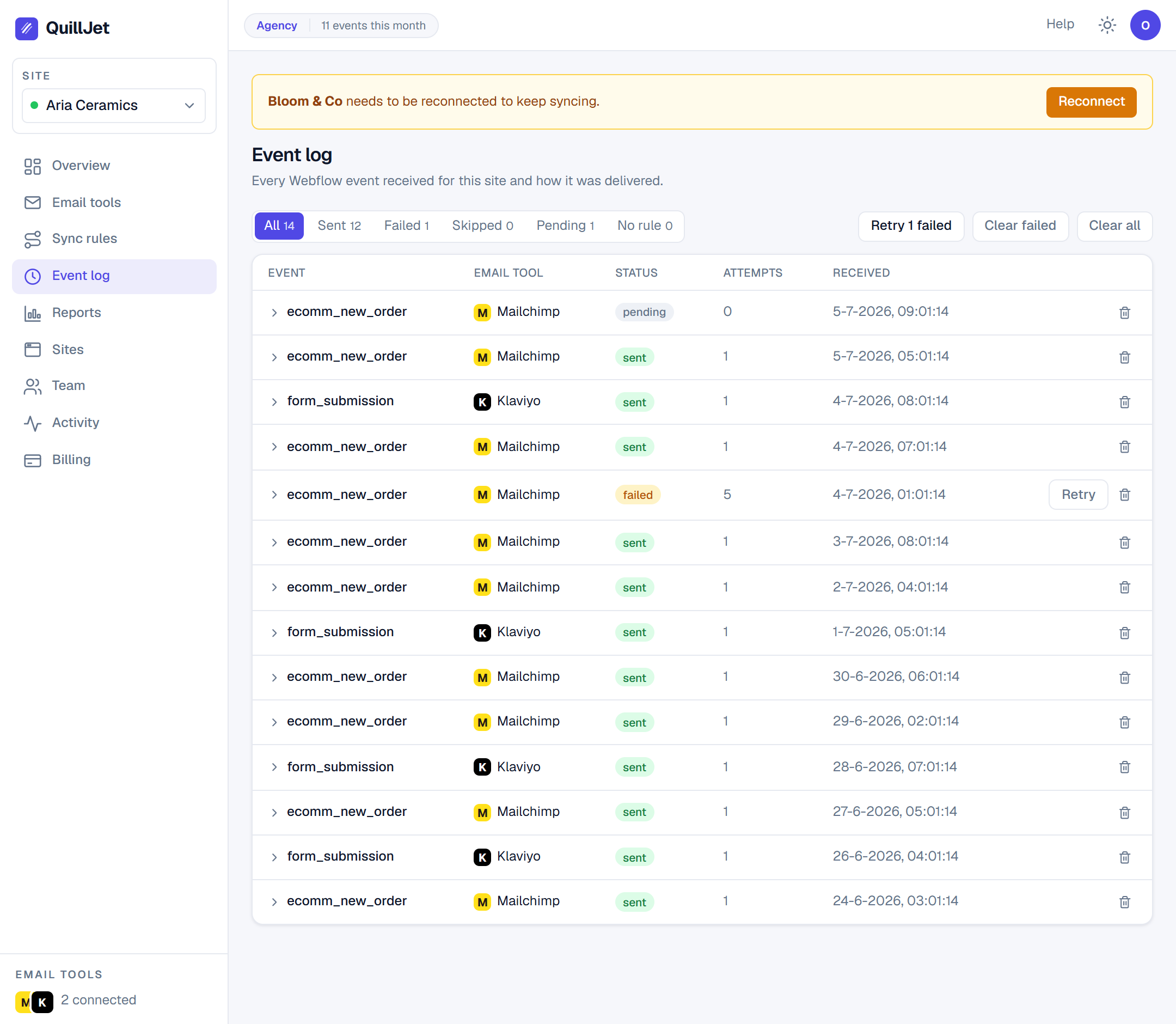
In QuillJet (the event log, fastest)
Start here. The event log lists every event QuillJet received and every delivery it created, newest first, each with a status:
- sent: the contact was upserted into your tool.
- skipped: nothing was sent on purpose: the rule's conditions were not met, the event had no email, the contact had no marketing consent in a tool that cannot hold one (
no_marketing_consent), or your plan's limit was reached (over_quota,over_plan_site,over_plan_tool). - failed: QuillJet tried but could not deliver (see troubleshooting).
- pending: queued or waiting on a retry.
Open any delivery to see the exact contact QuillJet built (email, name, fields, tags), which email tool and list it targeted, and the response your tool returned. A sent status with a real response means the contact is in your tool: if you cannot see it there, it is a view or search issue, not a sync issue.
In Mailchimp
QuillJet adds the contact to the audience your rule targets, matched by email. To find it:
- Open the correct audience (Mailchimp keeps contacts per audience, and a rule syncs into one specific audience).
- Search by the exact email address.
- Check that you are viewing all contacts, not a filtered segment. A new contact carries the tags from the rule, so you can also filter by that tag.
In Klaviyo, Brevo and the rest
The same idea applies everywhere: search by the exact email address, in the specific list the rule targets.
- Klaviyo: the contact is a profile added to the target list; find it under Profiles or open the list. Mapped values you gave non-standard names appear as custom properties.
- Brevo: the contact is added to the target list with your mapped attributes; search Contacts by email.
- MailerLite, ActiveCampaign, Omnisend, GetResponse: open the list the rule points to and search by email. Note that ActiveCampaign needs its account API URL set on the connection, and Mailchimp and GetResponse require a target list to be picked or the delivery fails with
no_target_list.
"It synced but I cannot find the contact"
Work down this list:
- Confirm the status in the event log. If it is skipped, open it for the reason (conditions, no email, no marketing consent, or a plan limit); if failed, open it for the error. Only sent deliveries create or update a contact.
- Check you are looking at the right list or audience. A rule syncs into exactly one list. Contacts do not appear in your other lists.
- Search the full email, and clear any segment or filter. New contacts hide behind an active segment view. In Mailchimp, ActiveCampaign and Omnisend, filtering by the rule's tag helps surface them.
- Remember there are no duplicates. QuillJet upserts by email, so a returning shopper updates the existing contact instead of adding a new row (in GetResponse, a contact already on the list is left unchanged). See subscribers and contacts.
- Remember nothing is backfilled. Only events that fired after your triggers and rule were enabled are synced; old orders are not. See how syncing works.
Tip: The event log is the source of truth for what QuillJet did. If it says sent with a successful response, the contact reached your tool, and the search is happening on your tool's side.
Checking what was sent (the delivery detail)
Open a delivery to see the full picture of that one sync: the contact preview (the email, name, every field, and every tag QuillJet built from the event) and the raw response your email tool returned. This tells you not just that a contact synced, but exactly what values landed on it, which is the quickest way to catch a mapping that pointed at the wrong field.
From the delivery detail you can also retry with one click. Because syncs are upserts by email, retrying is safe: it updates the same contact rather than creating a second one. Still stuck after checking here? Reach us through our support form.