Connecting your email tool
QuillJet syncs contacts into the email tool you already use. It supports seven: Mailchimp, Klaviyo, Brevo, MailerLite, ActiveCampaign, Omnisend, and GetResponse. QuillJet adds or updates contacts in a list or audience in your tool, and each sync rule decides whether a new contact is subscribed. Your tool owns all sending and unsubscribe handling. This page covers connecting each tool, picking a default list, using more than one tool, and disconnecting.
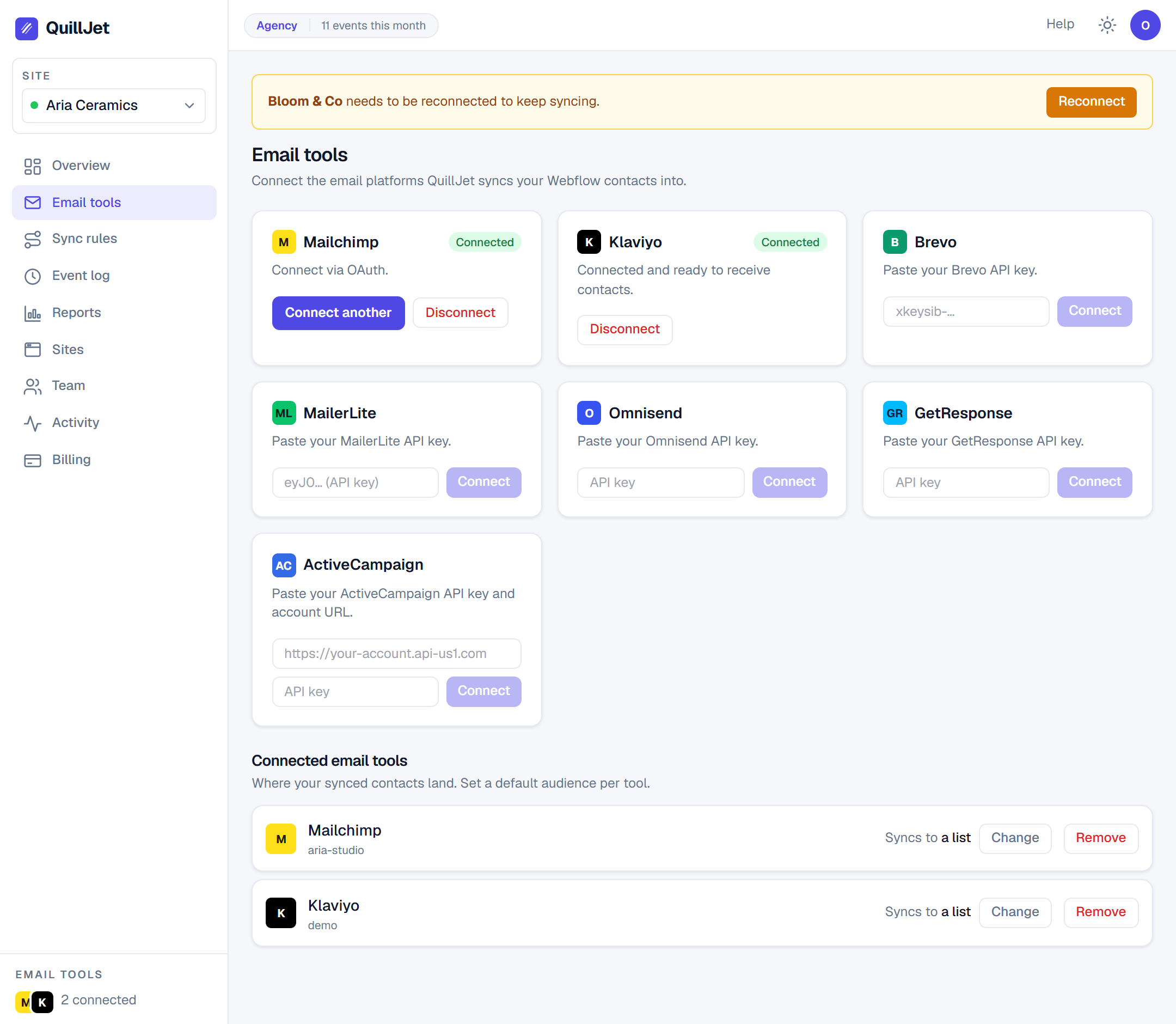
Mailchimp (one-click OAuth)
Mailchimp connects with one-click OAuth. Start the connection from the panel, approve QuillJet in the Mailchimp login screen, and you are returned to QuillJet with the connection ready. There is no API key to copy.
Mailchimp requires a target list before it can deliver. If your Mailchimp account has exactly one audience, QuillJet selects it as the default for you. If you have several, pick one in the connection settings or set the target list on the rule. Without a list, a Mailchimp delivery fails with no_target_list.
Connecting with an API key (the other six)
Klaviyo, Brevo, MailerLite, ActiveCampaign, Omnisend, and GetResponse connect with a scoped API key. Create a key in your email tool, then paste it into QuillJet's connection form for that provider along with an optional label. QuillJet verifies the key when you save it. If it is rejected, you see invalid_api_key with a detail message so you can fix it and try again.
Your key is stored encrypted at rest, and QuillJet's delivery adapters never see the raw encryption key. Like Mailchimp, GetResponse requires a target list before it can deliver, or the delivery fails with no_target_list.
ActiveCampaign needs your account URL
ActiveCampaign connects with an API key like the others, but it also needs your account API URL (the base URL of your ActiveCampaign account). Provide both when you connect. If a delivery runs without the account URL set, it fails with activecampaign_needs_account_url. Add the URL to the connection and retry.
Picking a default list or audience
QuillJet reads the available lists or audiences from your connected tool so you can pick a default. When a tool exposes exactly one list, QuillJet sets it as the default automatically, so simple accounts work with zero extra setup.
A sync rule can also set its own target list, which is useful when different rules should feed different audiences in the same tool. For Mailchimp and GetResponse, make sure a list is chosen somewhere (the connection default or the rule) so deliveries have a destination.
Tip: Merge fields and attributes are read per list in some tools, Mailchimp included. If your mapping targets look wrong, confirm you are pointing at the right list first.
Using more than one tool
You can connect more than one email tool, depending on your plan. Each sync rule points at a single connection, so you can route different Webflow events to different tools: orders to one, form submissions to another. See sync rules for how a rule chooses its connection, and billing and plans for how many tools each plan allows.
Disconnecting a tool
Disconnect erases the stored credentials and pauses delivery to that tool. The connection, the rules that point at it and their delivery history are kept, so you can reconnect with a key for the same account and carry on. While it is disconnected, deliveries for its rules fail with email_tool_disconnected; retry them after reconnecting.
Delete removes the connection together with the rules that send to it and their delivery history.
Either way, contacts already in your email tool are untouched: QuillJet never deletes contacts from your tool.
For where your synced contacts end up and how they are matched, see subscribers and contacts. For field shaping, see field mapping.