Conditions & filtering
Conditions let a sync rule sync only the events you care about. Want to add only buyers who spent over $100, or only form submissions where a newsletter box was checked? Add conditions. When an event does not meet them, the delivery is recorded as skipped, not failed, so your event log stays honest.
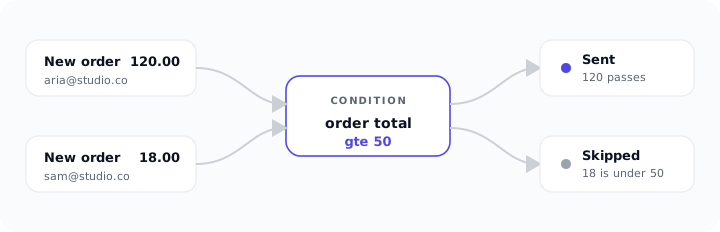
How conditions work (AND of all, empty passes)
A rule can have any number of conditions. They combine with AND: an event syncs only when every condition is met. If even one fails, the delivery is skipped.
A rule with no conditions always passes, so every matching event syncs. Add conditions only when you want to narrow things down.
Each condition points at a field in the event (the same source paths you use in field mapping), picks an operator, and (for most operators) gives a value to compare against. A field that is missing or empty is treated as an empty value when compared.
The operators
| Operator | Passes when |
|---|---|
exists |
The field is present and not empty |
equals |
The field value is exactly the value you set |
not_equals |
The field value is anything other than the value you set |
contains |
The field value includes the text you set (case-insensitive) |
gt |
The field, read as a number, is greater than your value |
gte |
The field, read as a number, is greater than or equal to your value |
lt |
The field, read as a number, is less than your value |
lte |
The field, read as a number, is less than or equal to your value |
The four numeric operators (gt, gte, lt, lte) compare both sides as numbers, so use them on numeric fields like an order total.
Examples
Only orders over a value. One condition: field customerPaid.value, operator gt, and a threshold value. Webflow's API reference describes this amount as the value "in the base unit of the currency" (developers.webflow.com, read 2026-10-30), so open a real order in the event log to see how your amounts arrive before you pick the threshold. Map customerPaid.value to a field in your tool as well if you want the total stored on the contact (see what syncs where).
Only when a checkbox equals true. One condition: field pointing at your form's opt-in field (under data.*), operator equals, value true. Only submissions where that box was checked sync. Check the exact value your form sends by opening a real event in the event log.
Only one form. One condition: field name (the form name, under Webflow details), operator equals, value Contact Form. Submissions from your other forms are skipped. Use the form name exactly as it appears when you open a submission in the event log.
Only when a field exists. One condition: field pointing at a phone or company field, operator exists, no value. Only events that actually include that field sync. Combine it with the order-total condition above and both must be met (AND).
Skipped is not failed
This distinction matters when you read the event log. When conditions are not met, QuillJet records the delivery as skipped. Skipped means "this event did not qualify for this rule, so nothing was sent," and it is a normal, healthy outcome, not an error.
A failed delivery is different: it means QuillJet tried to sync but your tool returned an error. An event with no email address at all (no_email_in_payload) is also skipped, since there is no contact to sync. If you see many skips, your conditions are doing their job. If you see failures, head to troubleshooting.
Tip: Seeing skips when you expected syncs? Your condition is stricter than the data. Open a skipped event, look at the real field value, and adjust the operator or value.
Testing your conditions
Before you rely on a rule, sanity-check it:
- Use the live preview in the rule editor to see the contact a sample event would build.
- After enabling the rule, trigger a real event (place a test order, submit the form) and open it in finding your contacts. A skipped delivery there confirms your conditions filtered it out; a sent delivery confirms it passed.
- Remember conditions are AND. If nothing is syncing, temporarily remove conditions one at a time to find which one is too strict.