Getting started
QuillJet is a Webflow app that adds or updates a contact in your own email tool when something happens on your Webflow site: a new order, a form submission, or, if you turn them on, a CMS item created or updated. Each sync rule decides whether a new contact is subscribed to your marketing emails. QuillJet does not send email; your email tool does all sending.
QuillJet is an independent app. It is not affiliated with or endorsed by Webflow or by any email tool provider.
This page lists what you need, what QuillJet changes and what you set up yourself, and then walks through setup in four steps.
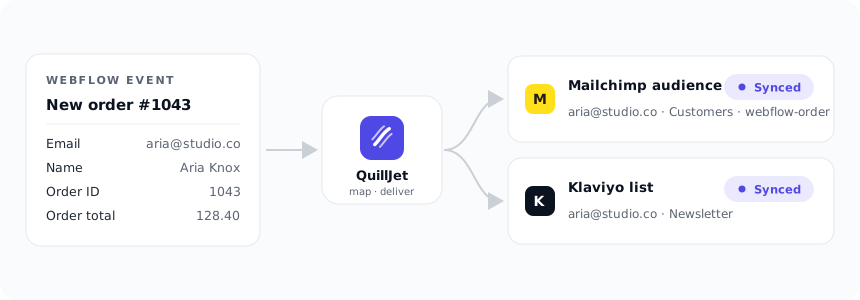
What you need before you start
- A Webflow account with access to the site you want to sync. You authorize QuillJet for that site on Webflow's own consent screen.
- An account with one of the seven supported email tools: Mailchimp, Klaviyo, Brevo, MailerLite, ActiveCampaign, Omnisend or GetResponse.
- Access to that email tool's connection method. Mailchimp connects through Mailchimp's sign-in screen. The other six need an API key that you create in the tool. ActiveCampaign also needs your account API URL.
- A list or audience in your email tool for contacts to join. Mailchimp and GetResponse cannot deliver without one. Omnisend has no lists, so there is nothing to pick there.
- For orders: Webflow Ecommerce on the site. Without it there are no orders to sync.
- For CMS triggers: a CMS collection on the site, with an email field in the items if you want them to become contacts.
- For form submissions: a form with an email field. If you only want people who agreed to marketing email to be subscribed, add a consent checkbox to the form.
What QuillJet changes in your Webflow site, and what you do yourself
What QuillJet reads. At install, QuillJet asks Webflow for read-only access: authorized_user:read, sites:read, ecommerce:read, forms:read and cms:read. It reads your site list, its own webhooks on your site, and the events Webflow sends for the triggers you turn on. Order events include the customer's name, email and addresses. QuillJet stores each event as Webflow sent it, so you can inspect it in the event log, until you delete it there or delete your account.
What QuillJet writes to your Webflow site. Only webhooks: one per trigger you turn on, pointing at QuillJet. They are added when you connect a site, turn a trigger on, resume or re-authorize a site, and removed when you turn a trigger off, pause or remove a site, or delete your QuillJet account. Every one of these changes follows an action you take in QuillJet. Nothing else is written to your site: no pages, CMS items, products, orders, forms, assets or code. QuillJet publishes nothing and adds no code, scripts or embeds to your site.
What QuillJet writes to your email tool. Contacts, per sync rule. A new contact is created, or an existing one with the same email is updated with the fields you mapped (and tags in Mailchimp, ActiveCampaign and Omnisend). In GetResponse, a contact already on the list is left unchanged. Whether a new contact is subscribed, pending, or saved without marketing consent depends on the rule and the tool; see subscribers and contacts.
What you set up yourself:
- The email tool account, and its API key or the Mailchimp sign-in.
- The list, audience or group contacts should join, and any custom fields you want to fill.
- The sync rules in QuillJet: which trigger, which tool, which fields, which conditions, and the New contacts setting.
- A consent checkbox on your Webflow form, if you want subscribing to depend on consent.
- Webflow Ecommerce for orders, and CMS collections for CMS triggers.
What is not covered:
- Sending email. Campaigns, automations, confirmation emails and unsubscribes are handled by your email tool.
- Events from before you installed QuillJet and enabled a trigger. Nothing is imported or backfilled.
- Inventory changes as contacts. Inventory events carry stock levels, not a customer, so they are logged but never create a contact.
- Payments. QuillJet takes no payments and syncs no payment data. Webflow's order events include the card brand, last four digits, name on the card, expiry date and Stripe payment ids; QuillJet drops these before the event is stored. Webflow does not send full card numbers or security codes.
Limits. Each plan has a limit on sites, email tools and events per calendar month (UTC): Free 1 site, 1 tool, 2,000 events; Growth 2, 2, 50,000; Pro 5 sites, unlimited tools, 500,000 events; Agency unlimited sites, tools and events. Past the monthly event limit, QuillJet still stores incoming events, but does not deliver them, and they are not delivered later. See billing and plans. Webflow's own plan limits, such as form submission and Ecommerce limits, still apply.
After you uninstall. Contacts already delivered stay in your email tool. QuillJet's webhooks may still be listed in Webflow under Site settings, Apps & Integrations, Webhooks (their address starts with https://quilljet.com/webflow-webhook/), but they no longer deliver anything. To remove them, delete your QuillJet account before you uninstall, or delete them in Webflow afterwards. See uninstalling QuillJet for the full list of what stays and what QuillJet deletes.
1. Connect your Webflow site
Install QuillJet and authorize it for the site you want to sync. A fresh site listens to two triggers by default: New order and Form submission. Inventory changes and CMS items are opt-in.
See connecting webflow for the full install, trigger, pause, and reconnect flow.
2. Connect your email tool
Mailchimp connects through Mailchimp's sign-in screen. The other six connect with an API key you create in the tool. ActiveCampaign also needs your account API URL.
If your tool has exactly one list or audience, QuillJet selects it as the default for you. Mailchimp and GetResponse require a list before they can deliver, so pick one if you have several.
See connecting email tools for step-by-step instructions per tool.
3. Build your first sync rule
A sync rule ties one Webflow trigger to one email tool. In the rule you choose the trigger, the target connection, an optional list or audience, your field mappings, any conditions, constants, tags, and the New contacts setting.
QuillJet extracts the email and name for you, so a basic rule can be as simple as: on Form submission, add the contact to your Mailchimp audience. Form rules subscribe new contacts by default; order, CMS and inventory rules start on "Add without subscribing" wherever your tool allows it. Change this before you enable the rule if it does not fit how you collected the contact.
See sync rules to create your first rule, and field mapping to shape exactly what lands in your tool.
4. You are live
Once a rule is enabled, each matching event from that moment forward is delivered to your email tool. Contacts are matched by email, so the same person is not added twice. Each delivery lands in the event log with a status of pending, sent, failed, or skipped, and you can retry a delivery with one click.
QuillJet does not backfill past orders or submissions. Only new events, from the point your triggers are enabled, are synced.
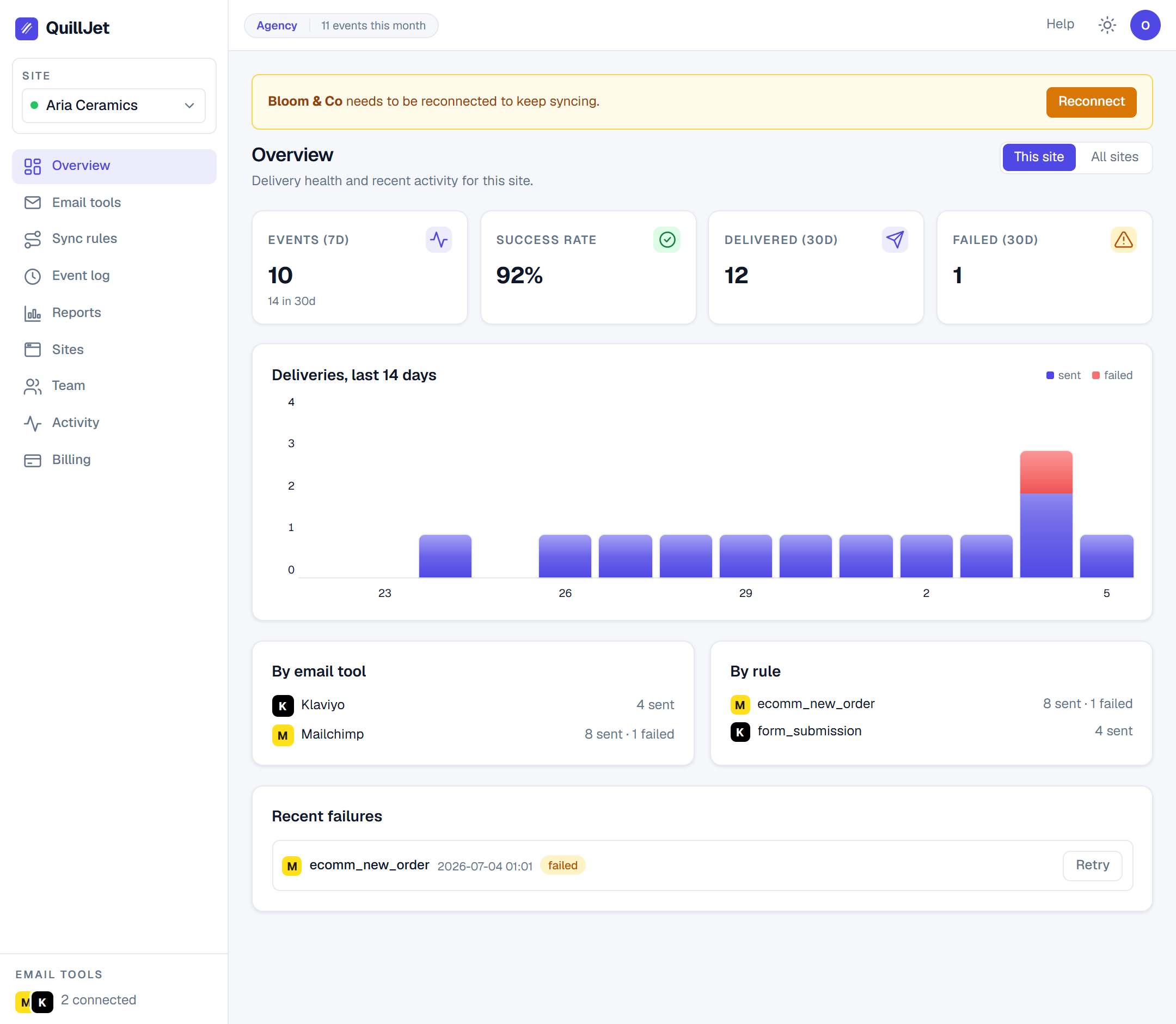
Tip: Use the Test button on a rule before you rely on it. Test runs a sample through the real delivery path so you can confirm your setup end to end.
Where to next
- connecting webflow: triggers, CMS opt-in, pausing, reconnecting and uninstalling.
- connecting email tools: sign-in and API-key setup for all seven tools.
- sync rules: one event to one tool, tags, testing, and cloning.
- subscribers and contacts: what each tool records for a new contact.
- field mapping: auto fields, transforms, constants, and the live preview.
- conditions: filter which events sync.
- how syncing works: the queue, retries, and what is not backfilled.
- troubleshooting: what each delivery status and error string means.