Sync rules
A sync rule is the link between your Webflow site and your email tool. Each rule ties one Webflow trigger to one email tool connection, then describes what to do when that event fires: which list or audience to target, which fields to map, which conditions to check, and which tags to add. One event to one tool, as many rules as you need. This page covers creating, targeting, tagging, testing, and cloning rules.
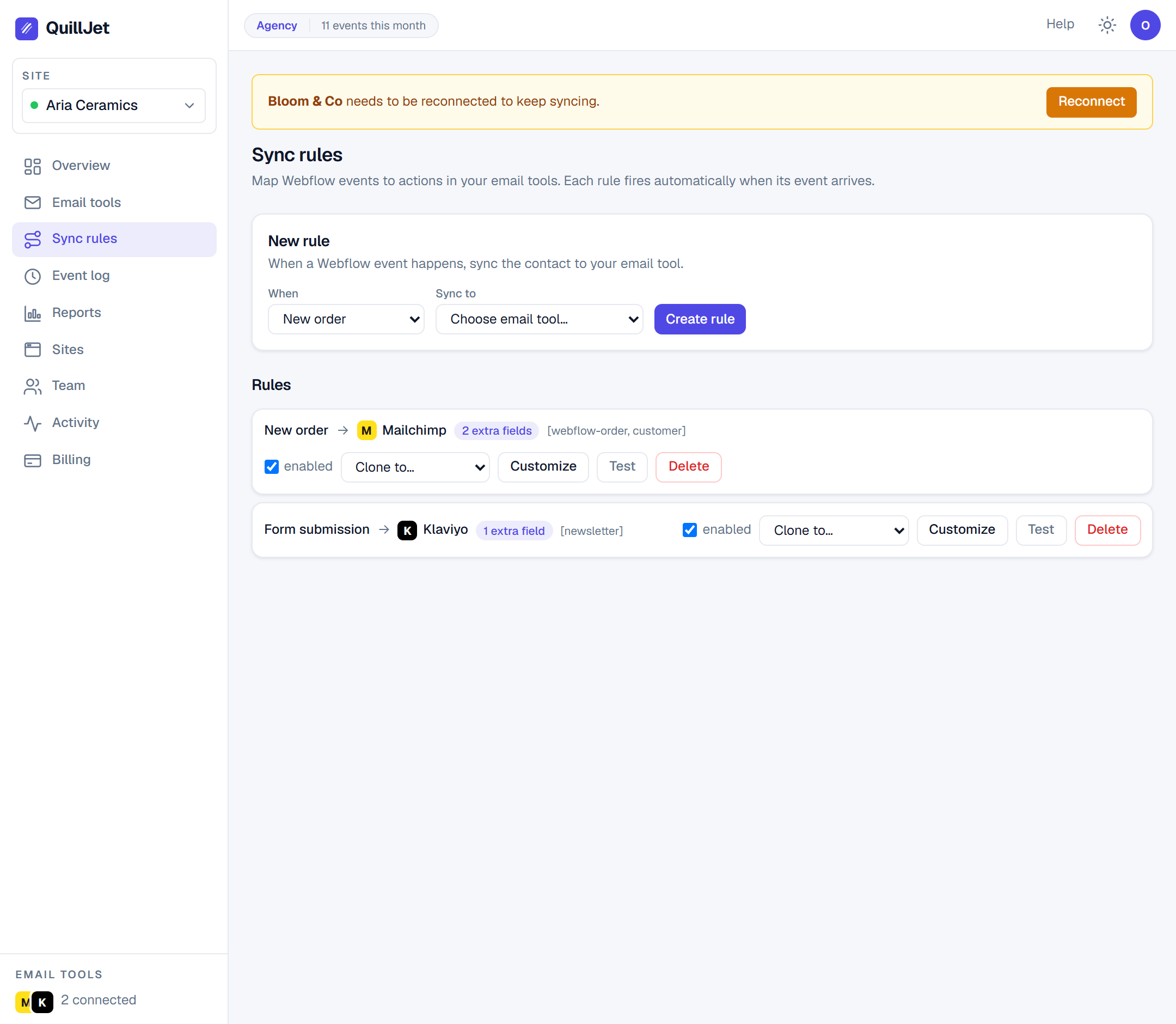
Creating a rule
To create a rule you pick a site, a Webflow trigger, and an email tool connection on that same site. The connection has to belong to the site the rule is on, or QuillJet rejects it with connection_not_on_site.
Each combination of site, event, and connection is unique. If you try to create a second rule for the same trigger pointing at the same connection, QuillJet returns rule_exists. Use conditions on a single rule, or a different connection, when you want more than one path for the same event.
When a rule fires, it adds the contact to the target list, or updates the contact if it already exists (in GetResponse, a contact already on the list is left unchanged). Matching is by email address, so the same person is not added twice. New rules are enabled by default. For exactly how the contact is built and stored, see subscribers and contacts.
Choosing the trigger
The trigger is which Webflow event the rule reacts to. QuillJet supports five:
New orderInventory changedForm submissionCMS item createdCMS item updated
A rule fires only for events whose type matches its trigger, and only when the site is actually listening to that trigger. Make sure the trigger is enabled on the site (CMS triggers need a re-authorize) in connecting webflow before you expect events.
Tip: Form submissions only arrive from your published site, and the Form submission trigger covers every form on the site. To sync one form only, add a condition on the form name (field
nameunder Webflow details, operatorequals, value: the form name as it appears in the event log). See conditions.
The target list or audience
Most rules deliver a contact into a list or audience in your email tool. You can rely on the connection's default list, or set a specific target list on the rule when different rules should feed different audiences.
Mailchimp and GetResponse require a target list to deliver. If neither the connection default nor the rule sets one, that delivery fails with no_target_list. Pick a list on the connection or the rule and retry. See connecting email tools for setting a default.
New contacts: subscribed or not
Each rule has a New contacts setting that decides the marketing status of a contact the rule creates:
- Subscribe them. The default for form rules.
- Subscribe only if they ticked a box. Pick the field that holds consent, such as a newsletter checkbox on your form. Unticked or missing means no consent.
- Add without subscribing. The default for order, CMS and inventory rules wherever your tool can hold a contact without consent (Mailchimp, Klaviyo, Omnisend, ActiveCampaign). In Brevo, MailerLite and GetResponse being on a list is the subscription, so this option is not available there and a contact without consent is not sent.
The setting does not ask your tool to resubscribe a contact who unsubscribed. What each tool records is listed in subscribers and contacts.
Tags
A rule can attach one or more tags to every contact it syncs in Mailchimp, ActiveCampaign and Omnisend (the other tools segment by list, and tags are not sent to them). Tags are written alongside the contact in your email tool, so you can segment by where a contact came from, for example a webflow-order or newsletter tag. Tags are applied on top of your field mappings and constants. For how tags land per tool, see subscribers and contacts.
Enabling, disabling and testing a rule
Every rule has an enabled state. Disable a rule to stop it from acting on events without deleting it or losing its mapping, then enable it again when you are ready.
Test runs a sample through the real delivery path once, so you can confirm your setup before going live. QuillJet prefers the most recent real event of that type so the test uses real data, including a real email that strict tools like Mailchimp and Klaviyo require. If no real event exists yet, it falls back to a sample addressed to your own account email, so the test delivery succeeds rather than being rejected as a placeholder. The result appears in the event log like any other delivery.
Tip: Testing with the fallback sample adds your own email to your audience. That is harmless and easy to remove, and it proves the connection and mapping actually work.
Cloning a rule to another site
Cloning copies a rule, with its field mappings, conditions, constants, tags and New contacts setting, onto another one of your sites. This lets an agency roll a proven setup across client sites without rebuilding it each time.
When cloning, QuillJet looks for a connection on the target site that uses the same email tool as the original rule. If it finds one, the clone points at that connection (and its default list) and is enabled. If there is no matching connection on the target site, nothing is cloned and QuillJet asks you to connect the same email tool on the target site first, so a clone can never run against the wrong destination.
For shaping exactly what each rule sends, continue to field mapping. To filter which events a rule acts on, see conditions.