Connecting Webflow
QuillJet connects to your Webflow site through Webflow's app authorization. Once authorized, QuillJet registers webhooks for the triggers you choose and starts syncing new events into your email tool. This page covers install, which triggers a site listens to, enabling CMS triggers, pausing and resuming, reconnecting, removing a site, and uninstalling QuillJet.
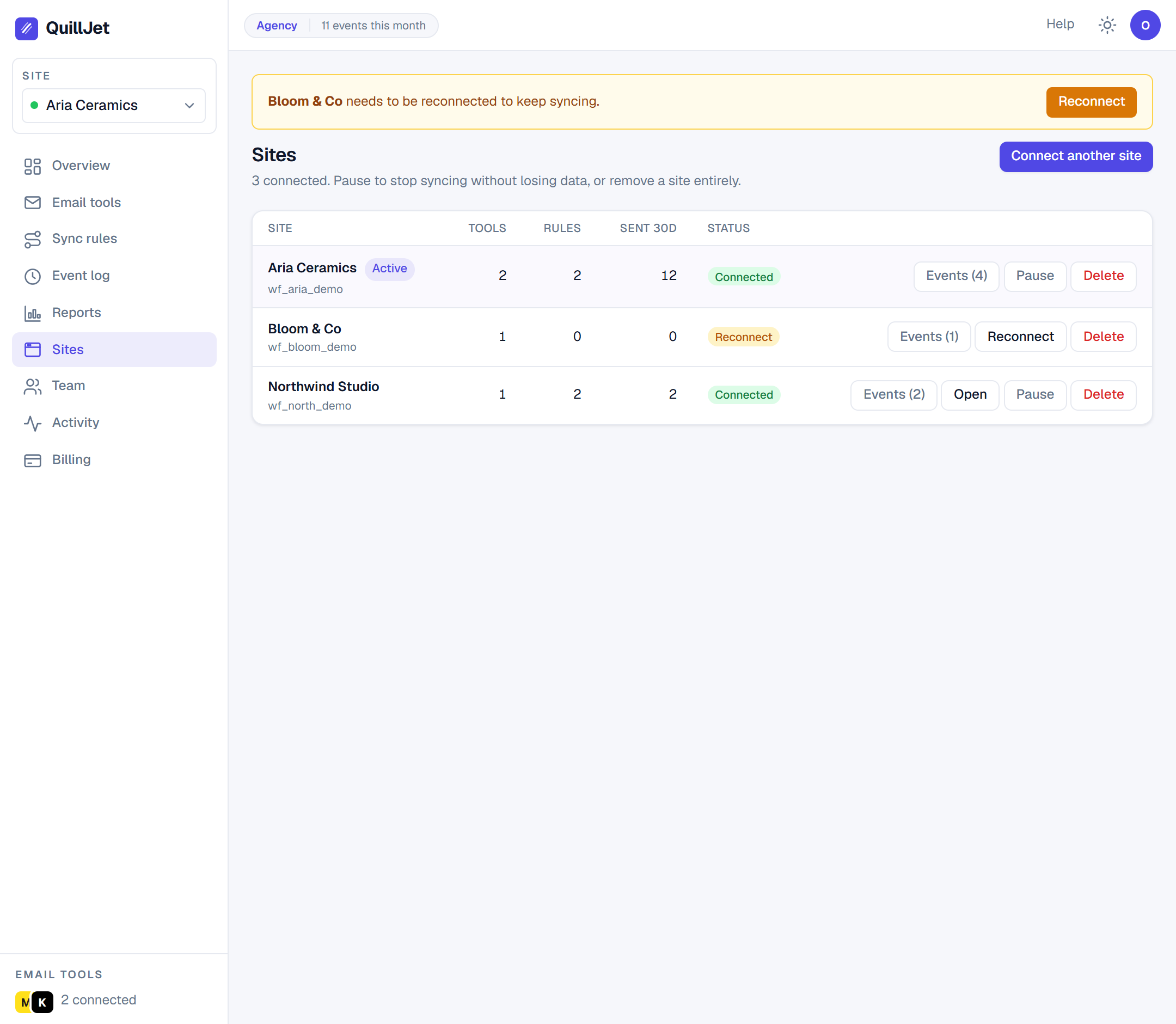
Install and authorize
Install QuillJet (from its Webflow Marketplace listing or its install link) and pick the site you want to sync. Webflow shows you the read scopes QuillJet requests, then hands back a token that QuillJet stores encrypted at rest.
QuillJet only asks for read access: authorized_user:read, sites:read, ecommerce:read, forms:read and cms:read. It reads events from your site to build contacts. The only thing it writes to your site is its own webhooks (see below). It never writes pages, CMS items, products, orders, forms, assets or code, and never publishes your site.
After authorizing, QuillJet lists the site in the panel with its status. From there you can set triggers, connect an email tool, and build a sync rule.
Which triggers a site listens to
A trigger is the Webflow event QuillJet subscribes to. QuillJet supports five, each tied to a Webflow read scope:
| Trigger label | Scope needed | Group |
|---|---|---|
New order |
ecommerce:read |
Ecommerce |
Inventory changed |
ecommerce:read |
Ecommerce |
Form submission |
forms:read |
Forms |
CMS item created |
cms:read |
CMS |
CMS item updated |
cms:read |
CMS |
A freshly connected site listens to two triggers by default: New order and Form submission, the two that carry a customer. Inventory changed events carry stock levels, not a customer, so they appear in the event log but cannot create a contact on their own. You can turn Inventory changed and the CMS triggers on, or turn the defaults off, from the site's trigger settings. QuillJet reconciles the live Webflow webhooks to match your selection, so only the triggers you choose will fire.
Finding the webhooks in Webflow
Webflow lists every webhook on a site in the site's settings: open Site settings, then Apps & Integrations, and scroll to Webhooks. QuillJet's webhooks are the ones whose address starts with https://quilljet.com/webflow-webhook/; all of a site's QuillJet webhooks share one address. Other apps' webhooks appear in the same list with their own addresses.
Webflow names them by its own event names:
| QuillJet trigger | Name in Webflow's list |
|---|---|
New order |
Ecomm new order |
Inventory changed |
Ecomm inventory changed |
Form submission |
Form submission |
CMS item created |
Collection item created |
CMS item updated |
Collection item changed |
Each entry also shows when Webflow last delivered an event to it ("Last used on"), which is a quick way to check that a trigger is firing.
Enabling CMS triggers
CMS item created and CMS item updated need the cms:read scope. New installs grant it during the normal authorize step, so turning a CMS trigger on starts it straight away.
Sites authorized before CMS triggers existed may have a token without cms:read. For those, QuillJet stores your choice right away and the panel asks you to re-authorize once; after you approve, the CMS webhooks are registered automatically.
Tip: If you enabled a CMS trigger but nothing is arriving on an older install, check whether the panel is asking you to re-authorize.
Pausing and resuming a site
Pausing a site stops new events while keeping your setup. When you pause, QuillJet removes the Webflow webhooks it registered, but keeps every sync rule, email tool connection, and your event history. While paused, incoming events are ignored and not captured, and they are not synced later when you resume.
If Webflow does not confirm that the webhooks were removed (it was busy or did not answer), the site is paused anyway, the panel says so, and QuillJet keeps trying in the background for about a week. If Webflow no longer accepts QuillJet's access, the panel tells you to delete the webhooks in Webflow yourself (see finding the webhooks in Webflow).
Pausing is reversible. Any account member can pause or resume a site, since it is an operational action rather than a destructive one.
Reconnecting
Resuming a paused site (or one whose token has gone stale) uses reconnect. QuillJet first probes your stored Webflow token:
- If the token still works, QuillJet deletes any QuillJet webhooks still listed on the site and registers them afresh, then flips the site back to connected with no OAuth round trip. Webflow keeps listing the webhooks of an ended authorization although they no longer deliver, so a listed webhook is never reused.
- If the token is dead (revoked or missing a scope), QuillJet marks the site as needing re-authorization and sends you back through the Webflow authorize flow.
Reconnect after re-authorizing restores the exact triggers you had selected, including any CMS triggers you had turned on.
Re-authorizing with fewer sites. Each time you approve QuillJet on Webflow's consent screen, QuillJet syncs only the sites you ticked that time. A connected site you leave unticked stops syncing: QuillJet removes its webhooks, deletes the access it had for that site, and shows it as not shared. Webflow itself keeps the earlier authorization, so QuillJet does this rather than relying on Webflow. To sync the site again, re-authorize and tick it.
Removing a site
Removing a site is permanent. It deletes the site and everything scoped to it: its sync rules, its email tool connections, its stored events, and its deliveries. QuillJet also removes the webhooks it created on Webflow:
- If Webflow confirms they are gone, nothing is left behind.
- If Webflow does not confirm it (busy or no answer), the site is still removed, the panel says so, and QuillJet keeps trying for about a week with the access token it held for that site. That token is kept only for this and deleted once the webhooks are gone, once Webflow refuses it, or when the retries end. You can also delete the webhooks in Webflow yourself.
- If Webflow no longer accepts QuillJet's access, the webhooks cannot be removed by QuillJet and may stay listed in Webflow; the panel tells you to delete them there.
- If another QuillJet account (for example your agency) still has the same site connected, the webhooks stay: they are shared, and that account still uses them.
Because it is destructive, only the account owner can remove a site. If you just want to stop syncing for a while, pause the site instead.
Uninstalling QuillJet
Webflow does not tell an app when it is uninstalled, so what happens depends on the order you do things in.
Recommended: delete your QuillJet account first, then uninstall. In QuillJet, open Account and choose Delete account. QuillJet then, straight away:
- cancels any paid subscription (if the cancellation fails, the account is kept so you are not billed for an account you deleted);
- removes its webhooks from each of your sites through the Webflow API (except a site another QuillJet account still has connected). If Webflow does not confirm a removal, the panel names the site after the deletion so you can delete those webhooks in Webflow: with the account gone, QuillJet keeps no access to try again;
- deletes its stored Webflow access tokens, your email tool credentials, sync rules, events and deliveries, and your account.
Then uninstall QuillJet in Webflow, in your site settings under Apps & Integrations.
If you uninstall in Webflow first:
- Webflow revokes QuillJet's access. QuillJet deletes its stored access token the first time Webflow refuses it, and at most a day later through a daily check.
- QuillJet's webhooks may still be listed in Webflow under Site settings, Apps & Integrations, Webhooks (see finding the webhooks in Webflow). They point at QuillJet and no longer deliver anything. You can delete them there.
- Your QuillJet account and all its data are deleted 30 days after the uninstall, unless you reinstall in that time or a paid subscription is still running. Cancel a paid plan in the billing view before you uninstall.
What stays in all cases:
- Contacts already delivered stay in your email tool. QuillJet never deletes contacts from your tool; remove them there if you want them gone.
- Your Webflow site content is untouched, because QuillJet never wrote any. The only things QuillJet ever adds to your site are the webhooks described above.
See connecting email tools next, then build a sync rule. For what happens after an event arrives, see how syncing works.