Connecting Webflow to your email tool is the easy part. The step that actually decides whether a synced contact is clean or full of junk is field mapping: taking the values out of a Webflow order or form submission and putting them in the right fields on the email-tool side. Get it right and you never think about it again. Get it wrong and you end up with blank names, contacts in the wrong field, or worse.
This post covers what QuillJet maps for you automatically, how to map your own fields, and the gotchas we ran into building it, so you can skip them.
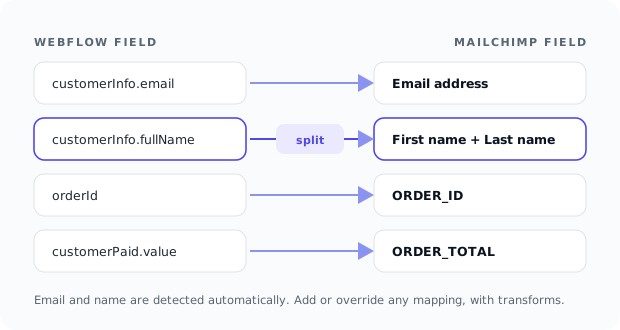
What gets mapped for you
Three things are handled without any configuration, because every sync needs them and getting them wrong is common:
- Email is the identity of the contact. QuillJet finds it wherever Webflow put it, an order’s customer email, a form’s email field under any label, a CMS item’s email, and uses it to upsert so the same person is never duplicated.
- First and last name. This one is trickier than it looks, and it is worth explaining because it is where a lot of tools quietly fall down.
- Tags, on the tools that support them.
Names are the part everyone underestimates
Webflow forms do not have a standard “first name” and “last name”. One form has a single “Name” field, another has “First” and “Last”, a third is in Dutch with “Voornaam” and “Achternaam”. A naive integration just looks for a field literally called firstName and gives up when it does not find one.
While building this, we made the name resolution deliberately stubborn. It looks for explicit first and last fields under a range of labels and languages, and if it only finds a single full-name field, it splits it: “Aria Knox” becomes first Aria, last Knox, while a single-word “Cher” stays a first name with no last. It also refuses to be fooled, a field called companyName or username is not treated as the person’s name. It is a small thing that means a contact lands with a real first name to greet them by, instead of a blank or a company.
Mapping your own fields
Beyond the basics, you map any Webflow value to any field your email tool has. In the mapping screen you pick a source (a field from a real recent Webflow event, so you are choosing from actual data, not guessing paths) and a target (a merge field in Mailchimp, an attribute in Brevo, a property in Klaviyo). Company, plan, order number, a survey answer, whatever you collect can flow through.
The one rule: the target has to exist on your email tool. Mailchimp and Brevo reject a write that references a field they do not have, so map to fields you have actually created. (We wrote a whole post on why Mailchimp rejects contacts for exactly this reason.)
The gotcha that wrote “[object Object]”
Here is a lived one. A Webflow payload is nested, an order has a customerInfo object, a shippingAddress object, and so on. While testing, we mapped a source path that pointed at one of those objects instead of a value inside it. The result was not an error. The email tool happily accepted the contact with a field set to the literal string [object Object], JavaScript’s unhelpful way of turning an object into text.
That is the worst kind of bug: no failure, just quietly wrong data sitting in your audience. We fixed the extraction so a mapping that lands on a container (an object or a list) rather than a plain value now produces nothing at all, instead of that junk string. If you have ever seen [object Object] show up anywhere, you know exactly why it was worth fixing.
Transforms and constants
Two extras make mapping do more than copy values across:
- Transforms clean a value in flight: uppercase or lowercase it, trim whitespace, or split a full name to grab just the first or last word. Handy when your email tool expects a particular format.
- Constants write a fixed value to a field regardless of the payload, for example a
sourcefield set towebflowon every contact, so you can segment by where a lead came from later.
One number to watch: order totals are in cents
If you sync ecommerce orders and map an order total, know that Webflow sends monetary amounts in minor units, so an order of fifty euros arrives as 5000, not 50.00. It is not wrong, it is just how Webflow represents money, but it will surprise you in your email tool if you expected a decimal. Map it knowing that, and format on the email-tool side if you need to.
The short version
Email and names are handled for you, names more carefully than most tools bother with. Map your own fields to targets that actually exist, use transforms and constants to shape the data, and remember that order totals come through in cents. Do that once in the mapping screen and every future contact lands clean.
Want the step-by-step with the rest of the setup? See how to sync Webflow forms to Mailchimp without Zapier, or the field mapping docs for every option.