You wired Webflow up to Mailchimp, someone filled in your form, and the contact never showed up in your audience. Nothing looked broken. No error on the page. The lead just quietly vanished.
Most of the time it did not vanish at all. Mailchimp received it and refused it. Mailchimp is strict about what it will accept into an audience, and when it rejects a contact it does so with a specific reason. The trouble is that reason usually never reaches you. This post walks through the three ways Mailchimp rejects a Webflow contact, using the actual errors, and how to make sure a real lead always lands.
First, see the rejection instead of guessing
The reason “my contact disappeared” is so frustrating is that the failure happens on Mailchimp’s servers, not in your browser, so there is nothing to see at the moment of submission. The fix is to look where the delivery is actually recorded. In QuillJet every event is stored the moment it arrives and every delivery attempt is logged with the exact response from the email tool, so a rejected contact shows up as a failed delivery with Mailchimp’s own words attached.
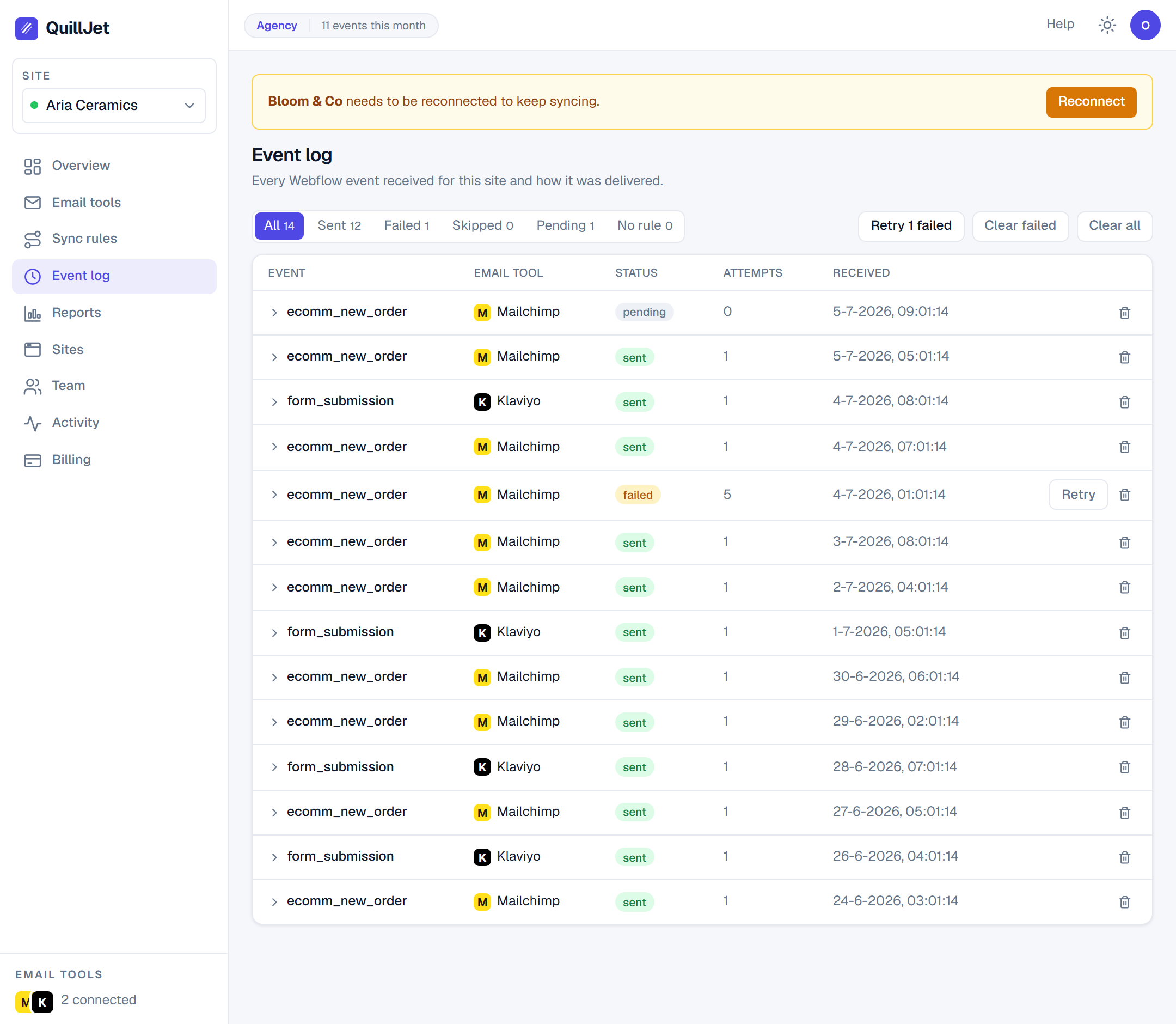
Once you can read the real error, every one of these becomes a two-minute fix.
Reason 1: the email address is not real
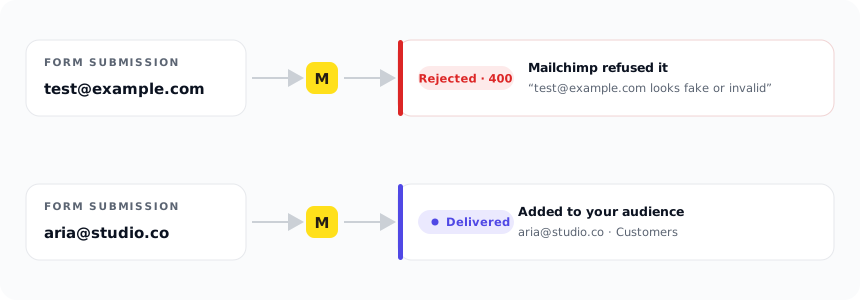
Here is a lived one. While testing this sync end to end across every supported email tool this week, we submitted our own Webflow form with test@example.com in the email field, exactly what most people type when they are checking that a form “works.” Mailchimp threw it straight back with a 400 and this message:
test@example.com looks fake or invalid, please enter a real email address.
That is not QuillJet being fussy. That is Mailchimp’s compliance layer rejecting an obviously fake address before it ever touches your audience, because sending to fake and role addresses is what wrecks a sender’s reputation. example.com, test@test.com, and typo domains all get bounced at the door.
The practical lesson: when you test your own funnel, submit with a real, deliverable address you control (your own inbox, or a plus-address like you+webflowtest@gmail.com). A test that uses test@example.com is not testing delivery, it is testing Mailchimp’s spam filter, and that filter will win every time.
Reason 2: you are sending a field Mailchimp has never heard of
Mailchimp audiences have a fixed set of merge fields (its name for custom fields, like FNAME, LNAME, or one you created called COMPANY). If you send a contact with a merge tag that does not exist on that audience, Mailchimp rejects the whole write with a 400 and a “merge fields were invalid” style error. The contact is refused because of one stray field.
This one bit us directly. An early version of the sync helpfully auto-attached order metadata like ORDER_ID and ORDER_TOTAL to every ecommerce contact. It seemed friendly. In practice, if you had not first created merge fields with exactly those tags on your Mailchimp audience, every order delivery failed. We pulled the auto-injection out entirely for that reason: order fields are now only sent when you map them to a field that actually exists on your side. Helpful defaults that cause hard failures are worse than no defaults.
So if orders are failing but form submissions work, check that every field you map has a matching merge tag on the target audience. Map only what exists, and the 400 disappears.
Reason 3: there is no audience to add them to
Mailchimp will not add a contact to nothing. If a connection has no default audience selected and a rule does not name one, the delivery fails before it even reaches Mailchimp. This is the easiest to miss because everything looks connected. Pick a default audience on the connection (or set a target list on the rule) and the contact has somewhere to land. Tools that organize contacts into lists, Mailchimp and GetResponse among them, always need this; a global-audience tool like Omnisend does not.
What a good sync does with a rejection
A rejection should never be silent, and it should never mean a lost lead. QuillJet does three things with one:
- Stores the event regardless. Even a rejected delivery keeps the original event, so nothing is ever truly gone.
- Retries automatically. Transient failures (a timeout, a rate limit) are retried with backoff before anything is marked failed, so a blip fixes itself.
- Shows you the exact error and a retry button. A genuine rejection like a fake email lands in the event log with Mailchimp’s own message, so you fix the cause and replay it in one click.
The difference between “my leads randomly disappear” and “that one had a fake email, fixed” is entirely about whether you can see the reason. Once you can, Mailchimp’s strictness stops being a mystery and becomes a short checklist: a real address, fields that exist, and an audience to land in.
Want the full path a contact takes from form to inbox? Read where your Webflow leads actually go, or see how syncing works in the docs.