Not every submission on your Webflow site belongs in your email list. A test order you placed yourself, a $4 sample, a contact form set to “no, do not email me,” a signup from a competitor sniffing around: syncing all of it into your email tool clutters your audience, skews your numbers, and occasionally emails someone who never wanted to hear from you. The usual fix is to clean up after the fact, which is slow and easy to forget.
Conditions solve this at the source. Instead of syncing everything and pruning later, you tell a sync rule exactly which events it should act on, and QuillJet quietly holds back the rest. This post covers how conditions work, a worked example, the checks you can use, and why a filtered-out lead is still recorded rather than silently dropped.
Conditions, in one sentence
A sync rule can carry conditions, and every condition on the rule has to pass for the event to sync. If they all pass, the contact is added or updated in your email tool as normal. If even one fails, the event is recorded but not sent. A rule with no conditions passes everything, which is why a brand new rule syncs every matching event until you decide to narrow it.
That is the entire model: conditions are an AND. There is no complicated logic to learn and no separate filtering step to build. You attach a few checks to the rule that already does the syncing.
A worked example: only paying customers
Say you sell on Webflow and you only want real buyers in your “Customers” audience, not the small sample orders you use for testing. You add one condition to your new-order rule: order total is at least 50.
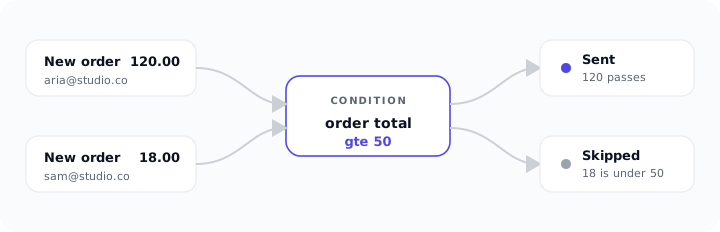
Now two orders come in. A $120 order clears the condition, so QuillJet builds the contact and adds them to your Customers audience. A $18 order does not clear it, so QuillJet records the event and marks it skipped. Nothing lands in your email tool for the small order, and you did not have to touch anything. The threshold is yours to set, and you can change it any time without rebuilding the rule.
The same shape works for plenty of everyday cases. You are always saying the same thing: only sync this event when this field looks the way I expect.
The checks you can use
Conditions look at a field in the event and compare it to a value you set. The comparisons available cover the situations that come up most:
- Exists: the field is present and not empty. Good for “only sync people who filled in the phone number.”
- Is, or is not: the field matches, or does not match, an exact value. Good for “only when the plan field is pro” or “only when source is not internal.”
- Contains: the field includes a piece of text. Good for “only when the message mentions demo.”
- Greater than, greater than or equal, less than, less than or equal: numeric comparisons. Good for order totals, quantities, or any number your form captures.
You can stack more than one on a single rule. For example: order total is at least 50, and the marketing checkbox equals true. Because conditions are an AND, both have to hold for the contact to sync. If you need two genuinely different paths for the same event, you make two rules, each with its own conditions and its own destination.
A subtlety we hit while testing conditions: a numeric check like order total is at least 50 has to decide what to do when the field is missing entirely. The naive answer treats a blank as zero, which quietly means a less than 100 rule would pass for a form that has no total at all. We fixed that so a missing or non-numeric value never satisfies a numeric condition. It sounds academic until a filter you trusted starts letting the wrong events through, so it is worth knowing yours fail closed, not open.
Skipped is not failed
This is the part worth internalizing. When a condition holds an event back, QuillJet does not throw it away and it does not treat it as an error. It records the event and marks the delivery skipped.
That distinction matters because it keeps you honest with yourself. Open the event log and a skipped row tells you two true things at once: the lead did arrive, and a condition intentionally stopped it from syncing. There is no mystery and no lost lead to hunt for later. Compare that to a setup that just never creates the contact, where a missing person and a filtered person look identical, and you can never tell which one you are looking at.
So if you ever wonder “I am sure that order came in, why is it not in Mailchimp,” the answer is right there. Either it synced, or it skipped on a condition you set, or it failed with a reason you can read. Skipped is a decision you made, shown back to you.
A few patterns that work well
Conditions are simple on their own, and most of their value comes from a handful of reliable patterns:
- Only marketing opt-ins. If your form has a consent checkbox, sync only when that field equals true. This is the cleanest way to keep your list to people who actually asked to be on it.
- Only orders above a threshold. Keep sample orders, test purchases and tiny transactions out of a “Customers” segment by requiring a minimum order total.
- Only a specific plan or product. If a field captures which plan or product someone chose, sync each one to a different audience by giving each rule an “is” condition and its own destination.
- Only complete submissions. Require that a key field exists, so half-filled forms or malformed submissions do not create thin, useless contacts.
- Keep internal noise out. If your own test submissions carry a recognizable value, add a “is not” condition so they never reach your real audience.
None of these need a separate tool or a formula. Each is one or two checks on the rule you already have.
Where conditions fit with the rest
Conditions decide whether an event syncs. Everything else about the rule decides what the contact looks like once it does. They work together cleanly.
QuillJet first checks the conditions. If they pass, it builds the contact: it finds the email, works out the first and last name, adds the fields you mapped and any transforms, and attaches your tags. Then it hands the contact to your email tool, which adds the person or updates them if they already exist. Because the match is on email, syncing the same person again never creates a duplicate. It just updates the one record.
So a good mental model is a short pipeline: does this event pass the conditions, and if so, here is the exact contact to upsert. You can tune the conditions without touching the mapping, and tune the mapping without touching the conditions.
Getting it right
A couple of habits make conditions painless:
- Start loose, then tighten. Watch a few real events flow through with no conditions, see what the payload actually contains, then add checks against fields you have confirmed are there.
- Use the event log to confirm. After you add a condition, a genuine test submission that should be filtered will show up as skipped, and one that should pass will show as sent. That is your proof the rule behaves the way you intended.
- Remember it is an AND. If nothing is syncing after you add conditions, you have probably required something that is not true as often as you thought. Loosen or remove one check and watch the log again.
The goal is a list that reflects a decision, not an accident. Conditions are how you make that decision once and let it run. If you want the step-by-step version, the docs cover every operator with examples, and the support form is there if a skipped row in your event log ever surprises you.