Almost every “connect Webflow to email” guide stops at Mailchimp. But plenty of Webflow stores run on Klaviyo, ActiveCampaign, GetResponse, Brevo, MailerLite, or Omnisend, and a Mailchimp-only tutorial does them no good.
QuillJet delivers to all seven. That sounds like one feature. Under the hood it is seven completely different integrations, because no two email tools agree on how to add a contact. This post is the honest tour of what that actually takes, including the parts that surprised us while building and testing it.
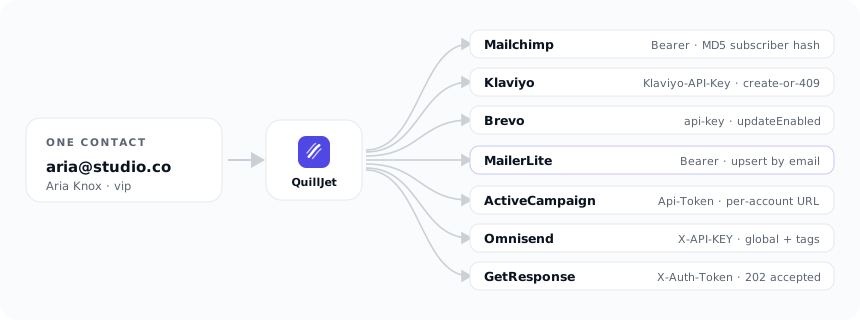
One contact, seven very different doors
When a Webflow form is submitted or an order is placed, QuillJet builds a single, tidy contact: an email, a first and last name, whatever fields you mapped, and any tags. That part is shared. Then it has to hand that contact to whichever tool you connected, and each one wants it differently:
- Mailchimp identifies a contact by the MD5 hash of the lowercased email, and you upsert by
PUTting to that hash. - Klaviyo wants you to create a profile, and if it already exists it answers
409with the existing profile’s id so you can update it. - Brevo takes a simple create with an
updateEnabledflag that turns it into an upsert. - MailerLite upserts by email but calls custom fields by lowercase keys like
nameandlast_name. - ActiveCampaign is different for every account: its API lives at a per-account URL like
youraccount.api-us1.com, so the connection needs the URL as well as the key. - Omnisend has no lists at all, one global audience segmented by tags, so “pick a list” simply does not apply.
- GetResponse organises contacts into “campaigns” (its word for lists) and adds them asynchronously.
Seven auth headers, seven upsert models, seven ways to say “list.” QuillJet hides all of it behind one mapping screen, but building it meant meeting each tool on its own terms.
The quirk that cost us an afternoon
Here is the lived one. GetResponse, unlike every other tool, answers a successful contact-add with HTTP 202 Accepted and an empty body, because it queues the add and processes it a moment later. Our delivery code did what works for the other six: read the response as JSON. Calling the JSON parser on an empty body throws Unexpected end of JSON input, so from our side a perfectly successful GetResponse add looked like a hard failure. Every GetResponse delivery was being marked failed and retried, even though the contact had gone through fine.
We only caught it by running a real delivery against a live GetResponse account, not a mock. A stub returns whatever JSON you tell it to; the real API returns that empty 202, and that is the only place the bug could surface. We fixed the adapter to treat an empty success as success, added a test that reproduces the exact empty-202, and re-ran it live. It is a small thing, and it is exactly the kind of thing you cannot find without pushing a real contact into a real account.
The other small surprises
A few more from wiring all seven, in case you ever build against these APIs yourself:
- Klaviyo defaults to returning about ten lists if you do not explicitly ask for a page size, so a store with more lists would not see the rest in the picker until we requested a full page.
- ActiveCampaign tags are a two-step dance: find-or-create the tag, then attach it to the contact. We apply them on a best-effort basis, so a tagging hiccup never fails an otherwise-good contact sync.
- Omnisend and Mailchimp are the two tools that natively apply tags; for the tools that organise by list or segment instead, QuillJet now tells you in the rule editor that tags will be ignored, rather than dropping them silently.
- Brevo reminded us these are live calls: one of our test keys had been rotated, so Brevo answered
401 Key not founduntil we pasted a fresh one. Not a bug, just proof that “it worked in the mock” means nothing.
What this means for you
You do not see any of the above, and that is the point. You connect your tool with an API key (or, for Mailchimp, one OAuth click), you map Webflow fields to your tool’s fields once, and every order or form submission flows in. Switching tools later, or sending to two at once, is the same mapping screen, not a rebuild.
When we last ran the full pass, six of the seven tools delivered a real contact on the first attempt, and the seventh only needed a fresh API key. That is the bar: not “it should work,” but “we pushed a real contact into a real account and watched it land.”
Pick your tool and go: see how syncing works, or read how to sync Webflow forms to Mailchimp without Zapier for the step-by-step on the most common one.